
Devil Fruit Arena Controls
How to move, swing, and open Settings on every platform the game actually supports.
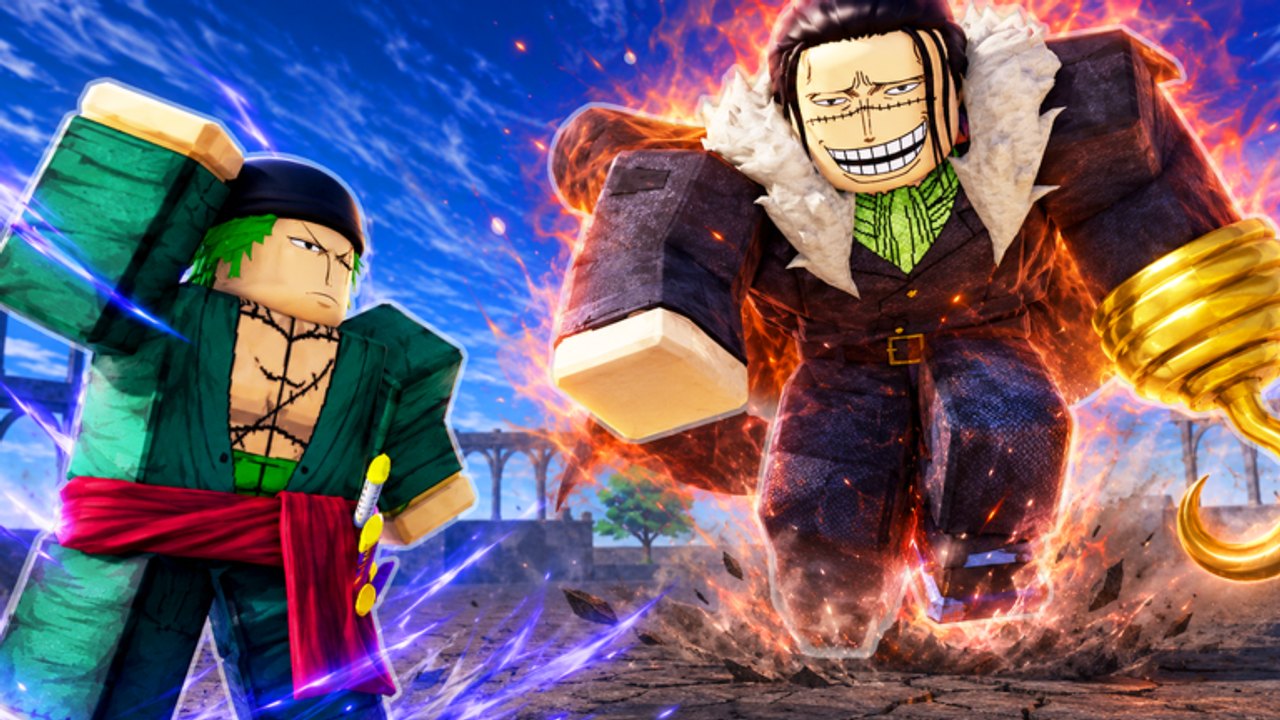
Devil Fruit Arena lists PC, console, mobile, and tablet on the Roblox page. The HUD is the same idea on all four: movement, a basic attack, fruit skills, and a cogwheel in the upper-left for Settings and codes. This page is the practical bind guide. Pair it with how to play once your fingers know where the buttons are.
Blackbox has not published a public keycard. What follows is the layout every Roblox battleground of this type uses, plus the one control we have confirmed in every code guide: the cogwheel. If a patch remaps a skill, check Settings — that menu is also where you redeem codes.
PC (keyboard and mouse)
Expect the usual Roblox fighter skeleton:
- WASD — move. Strafe while you charge a stretch punch; standing still is a gift.
- Space — jump. Some fruits want a jump confirm; do not bind jump to a skill key.
- Left click — M1 / basic attack. This is your filler between fruit cooldowns.
- Fruit skills — number keys or a nearby cluster (1–4 or Q/E/R/F depending on your layout). Put your confirm on the key you can hit while holding D.
- Shift — sprint or dash if the fruit has one. Stretch kits need a dash to start the punch; ice kits need it to leave a freeze.
- Esc — Roblox menu. Cogwheel — Devil Fruit Arena settings. They are not the same button.
Rebind anything that collides with Roblox chat (/) or emotes. If you cannot M1 and skill in the same second, you will lose to the swordsman morph in the official combat shot every time.
Console
Use the on-screen cursor for the cogwheel until you memorize which face button opens Settings. Combat should stay on the stick and bumpers:
- Left stick move, right stick camera.
- Right trigger or bumper for M1.
- Face buttons or D-pad for fruit skills — pick a cluster you can hit without dropping camera control.
- Sprint on a bumper, not on the same face button as your ultimate.
Console players die by looking at the skill bar. Hide it after you learn the kit. The fruit guide tells you which kits are camera-heavy (stretch, light) versus stick-friendly (bruiser, ice).
Mobile and tablet
The official art is widescreen for a reason: the HUD needs room. Play in landscape. Auto-rotate off, chat collapsed, cogwheel reachable with the left thumb.
- Left virtual stick for move.
- Right-side buttons for M1 and skills. Keep three skills max on the first row; a fourth button you cannot hit is a dead bind.
- Sprint/dash as a hold, not a separate tiny button under your camera swipe.
- If UI scale makes the cogwheel untouchable, drop scale in Roblox settings, not in a “GUI script.” Scripts are a ban.
Mobile should pick simpler kits from the fruit picker. Stretch confirms that look gorgeous on PC are misery on a 6-inch screen.
Settings that are actually combat settings
Inside the cogwheel you will also redeem codes, but look for:
- Shift lock / camera lock if it exists on your client — arena games feel better with a locked shoulder.
- Mute / SFX — you need the hit sound more than the lobby music.
- Code box — active codes live here. Do not hunt a gift icon.
If a toggle is not in Settings, it is not a real option. Overlay menus from executors are how people lose the account. The scripts hub explains what is circulating; the safety page explains why you should not click it.
Practice the binds, then the game
Spend five minutes in a quiet corner of the map:
- M1 string until it is automatic.
- Skill 1, walk, skill 2. If you stop walking, rebind.
- Dash in, skill, dash out. That is the bounty survival pattern.
- Look up, find the cogwheel without thinking. You will need it on update night.
Then go fight. Controls are a solved problem; fruit choice is not. When the binds feel invisible, jump to Getting Started if you are new, or PvP tiers if you already have a main.
The arena does not pause while you open a Google Doc of keybinds. Learn four inputs. Win one trade. Bind the fifth input tomorrow.
Frequently Asked Questions
Quick answers to the most common Devil Fruit Arena questions.
Where is Settings in Devil Fruit Arena?
The cogwheel in the upper-left. That is also the code box. Esc is the Roblox menu, not the game menu.
Can I play on mobile?
Yes. The listing includes mobile and tablet. Use landscape, collapse chat, and pick a simpler fruit.
What is the default skill bind?
Blackbox has not posted a public keycard. Use Settings, put confirms on keys you can hit while moving, and do not collide with chat.
Should I use a GUI script to move buttons?
No. Exploiting is a permanent ban. Resize the official HUD or change Roblox UI scale instead.